The parent console
Progress, settings, schedules, transcripts, and handing the tablet back safely.
Getting in (and locking up after)
The parent console lives behind your password, even on a device where a kid is already using the app. Two ways back out:
- ← kid's view just peeks at their dashboard. Parent mode stays unlocked for a while so you can bounce back without retyping.
- Lock & hand back (the mint button) locks parent mode immediately and returns to the kid view. Use this one before you walk away; getting back in requires the password again.
The overview
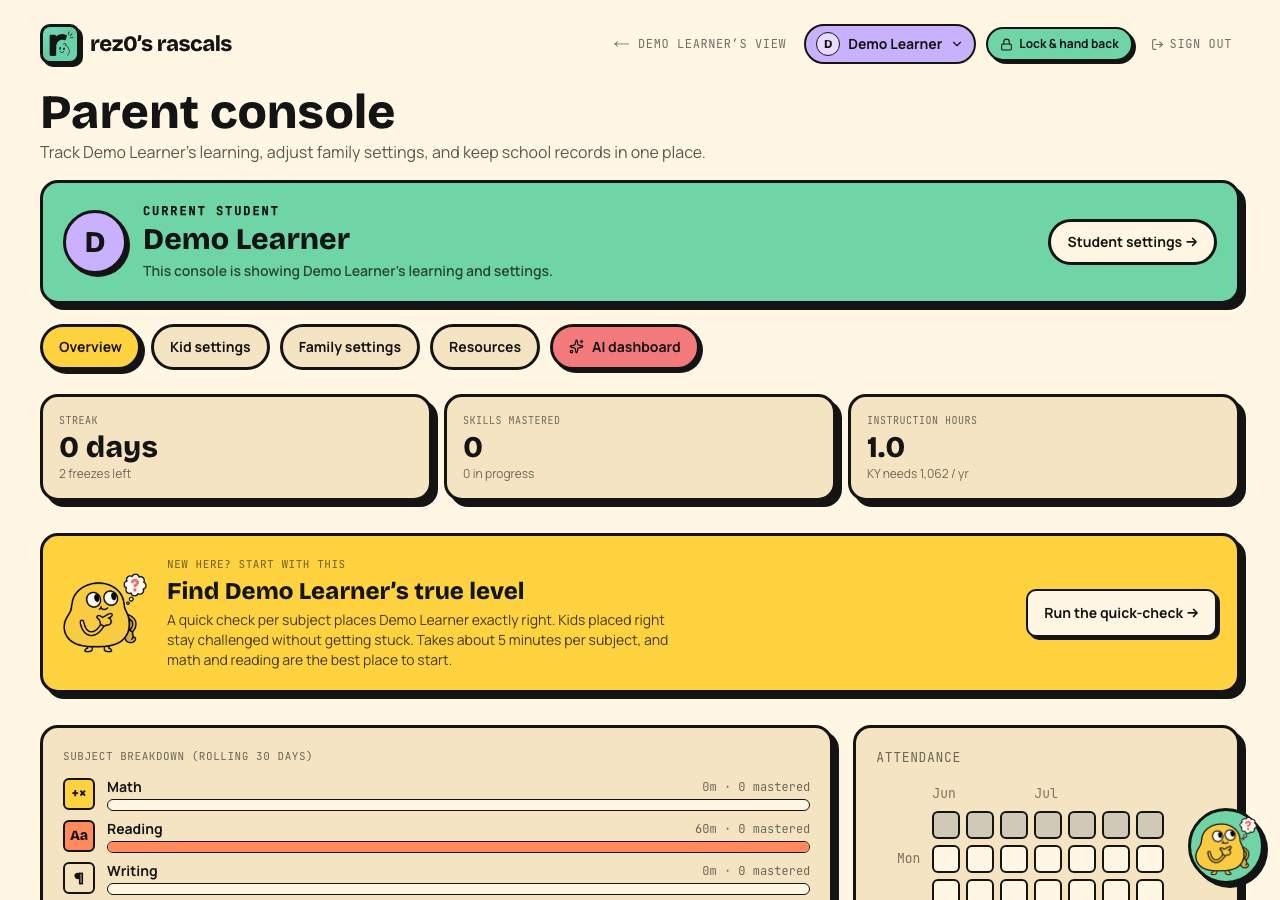 A focused progress view, with the rest organized into clear tabs.
- Current student banner: the learner name and avatar are shown prominently above the tabs, so it is always clear whose progress and settings are on screen. Families with siblings can use Switch student to jump to Family settings and choose another profile.
- Stat tiles: streak, skills mastered, and instruction hours, tracked automatically.
- Snapshot: per-subject level bars once placement has run. Until then it's a nudge to run the quick-check.
- Subject breakdown and attendance: where the minutes went, and a heatmap of which days got done. Rascals lessons and outside learning both count.
- Recent badges and attempts: the latest wins and lesson activity.
The navigation keeps related work together:
- Kid settings contains the learner profile, accessibility, subjects, school schedule, learning mode, and daily target. The color picker previews the learner’s personal dashboard Rascal. Day and subject selectors show explicit checkmarks for days. Subject switches place the thumb on the right when enabled and on the left when disabled, instead of relying on color alone. Subject switches change with one quick click or tap. Neither the switch nor its surrounding table moves while pressed. Save schedule to keep the changes.
- Family settings contains learner switching and sibling management, your state, plan and billing, and parent account details.
- Resources contains placement, outside hours, printable records, the teacher transition report, coach transcripts, reading lists, and feedback.
- The coral AI dashboard tab, marked with a sparkle, opens coloring pages, worksheets, and the parent advisor.
The top header always starts its parent actions with ← current kid's view. The colored learner chip beside it shows the selected student. Select that chip to switch profiles from any parent page. Lock & hand back still re-locks parent mode before returning to the kid dashboard.
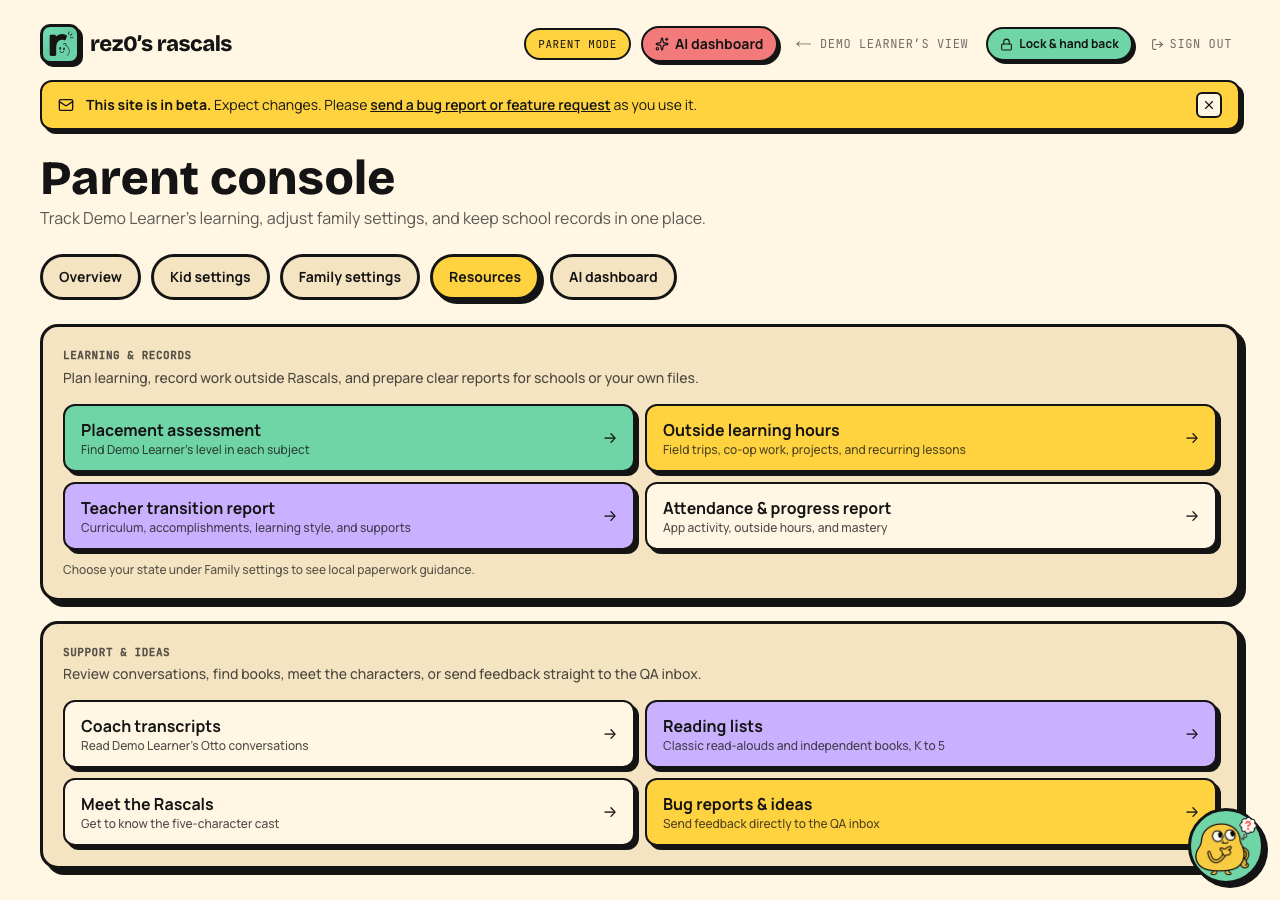 Learning records and family support tools stay together.
Outside learning hours
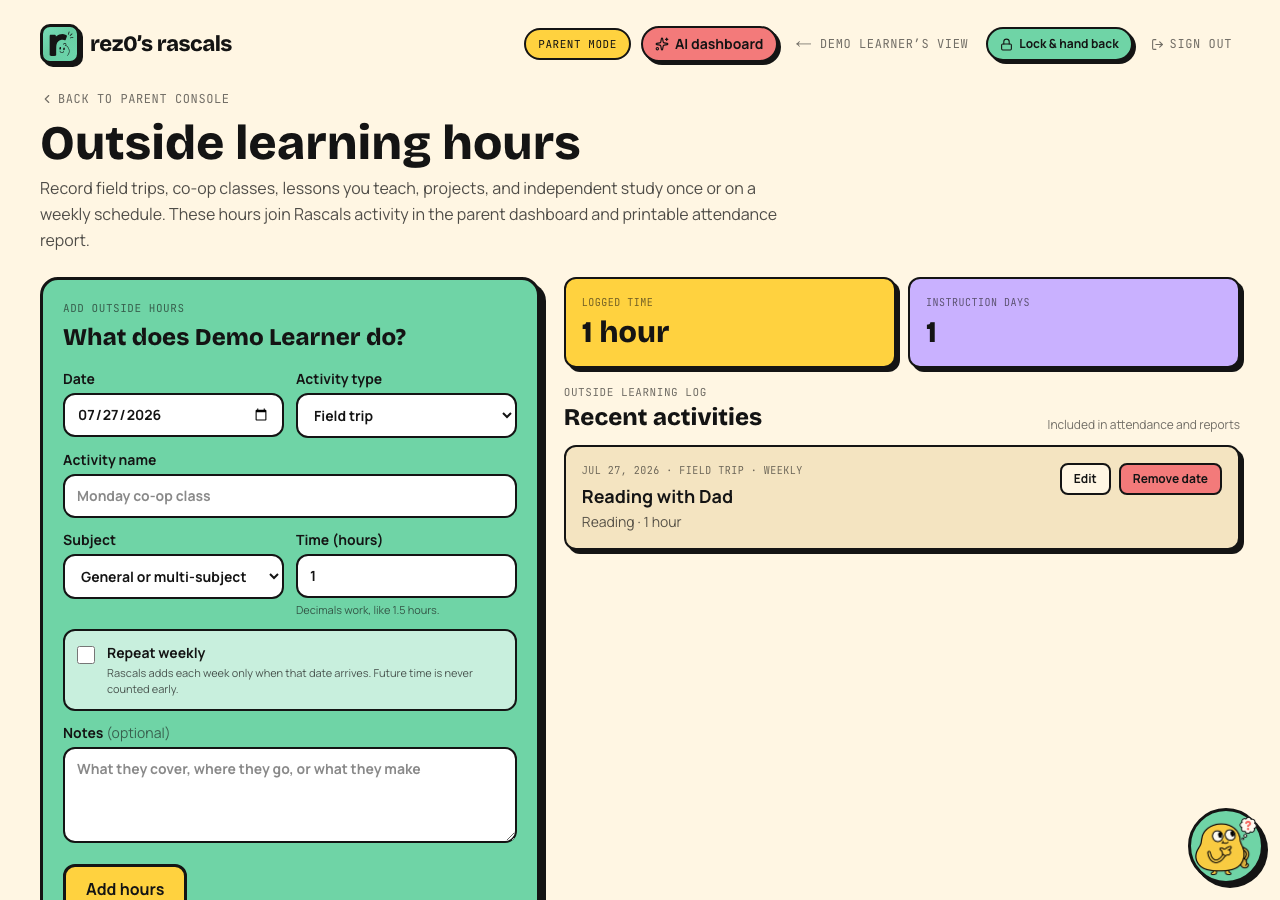 Add field trips, parent-taught subjects, and other learning in one log.
Open Outside learning hours under Resources to record learning that happened away from the lesson player. Field trips, co-op classes, parent-taught lessons, projects, and independent study can all be logged. Pick a Rascals subject or name another subject such as art, music, or nature study.
Each entry has a date, activity type, name, subject, time, and optional notes. You can edit or delete it later. Logged time is added to instruction hours, attendance days, the rolling subject breakdown when it uses a Rascals subject, and the printable attendance and progress report.
Turn on Repeat weekly for a standing co-op, tutoring session, music lesson, parent-taught subject, or other recurring activity. Choose one day or several days, such as Monday through Friday for daily reading. Rascals records each occurrence only when its date arrives, so the yearly total never includes future time.
You can also edit an existing one-time activity and turn on Repeat weekly. Its original entry stays in the log and becomes the first occurrence of the new plan.
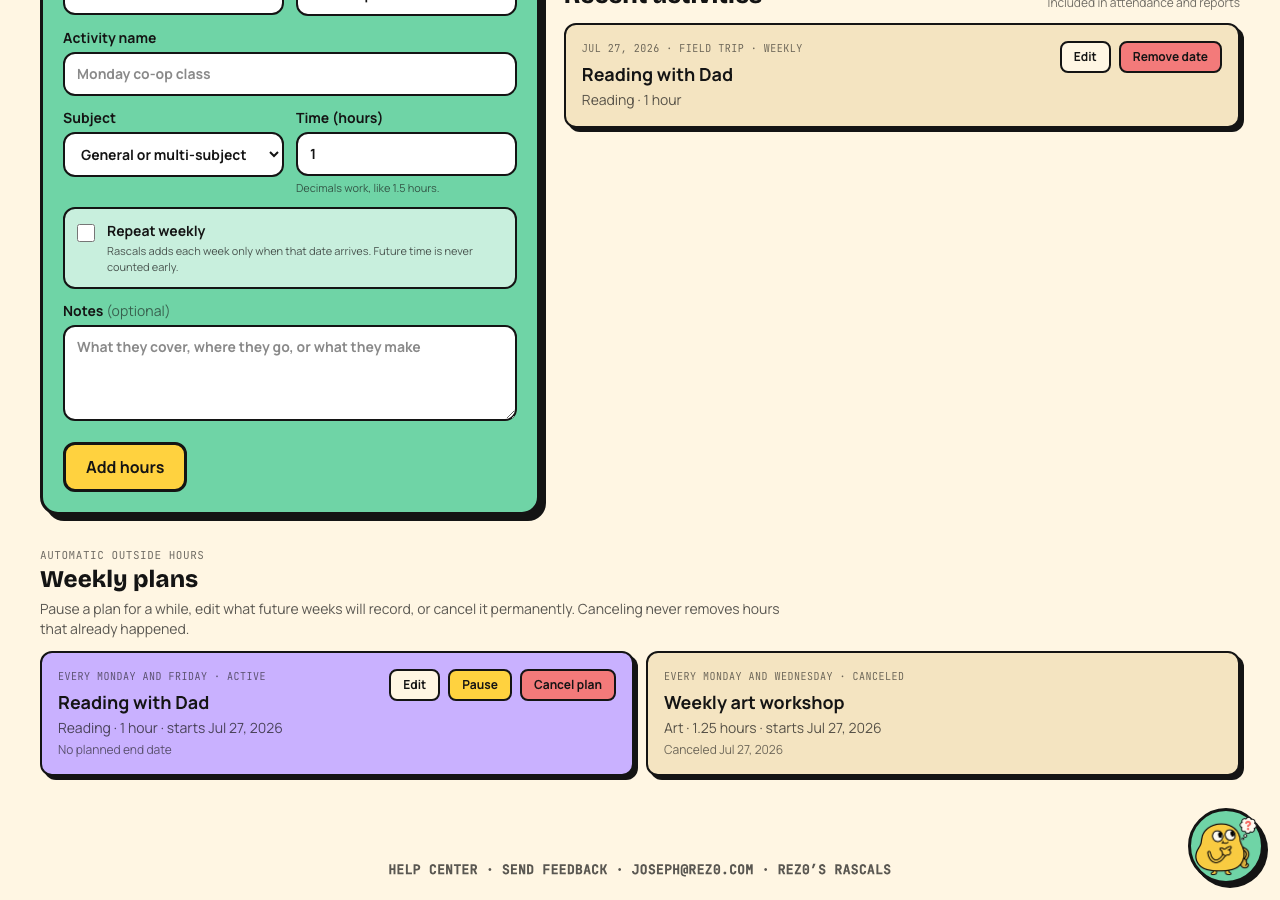 Manage automatic hours at the bottom of the page.
The Weekly plans section stays at the bottom of the page. Edit a plan to change future occurrences, pause it during a break, resume it later, or use Cancel plan to stop it permanently. Paused weeks are not backfilled. Canceling leaves every hour that already happened in the learner's record. You can also remove one generated date without stopping the rest of the plan.
Teacher transition report
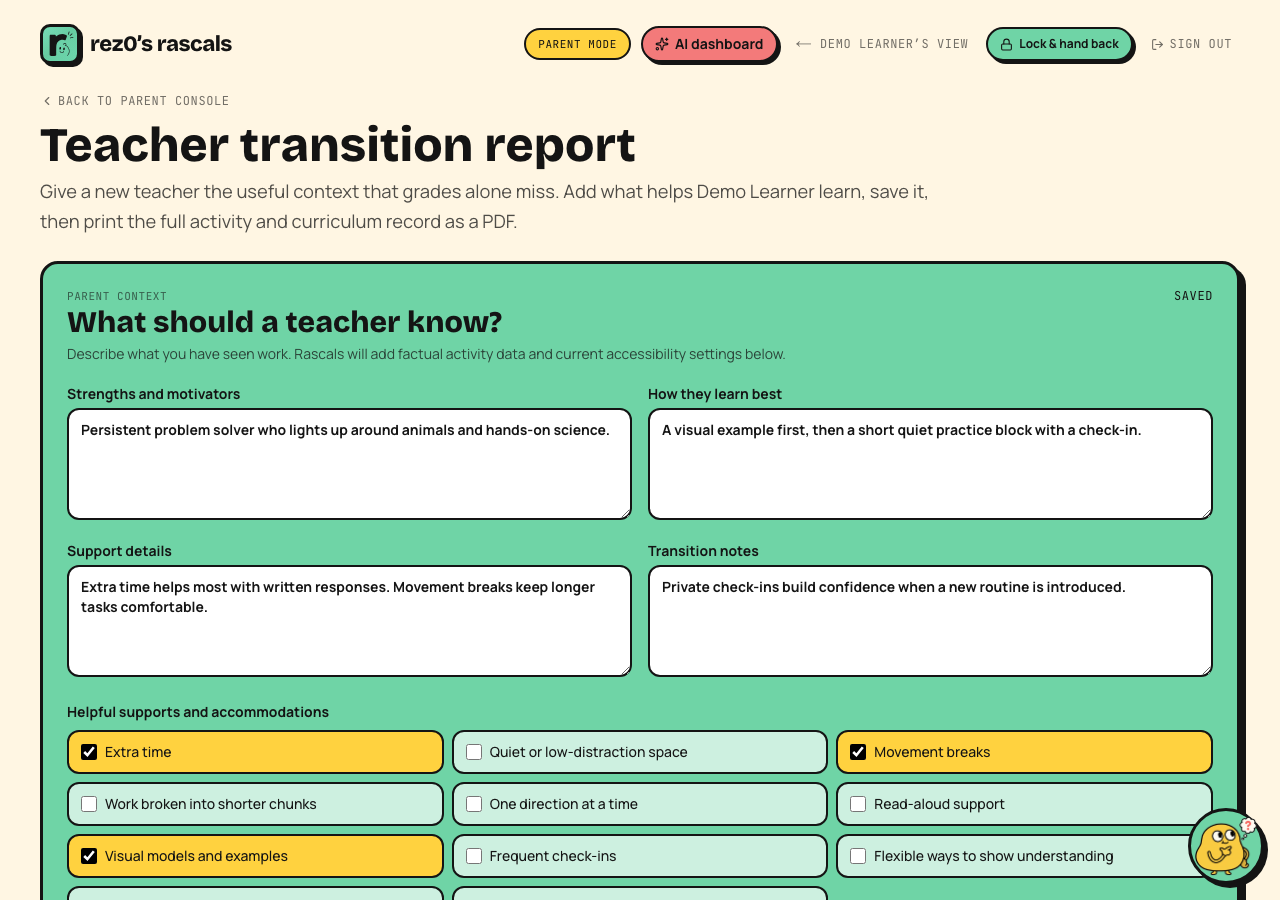 A teacher-ready snapshot of progress plus the context only a parent knows.
Open Teacher transition report under Resources when a learner is moving to another school, classroom, co-op, tutor, or support team. Rascals fills in curriculum placement by subject, mastery, instruction time, activity accuracy, hints, reading, typing, badges, interests, and enabled accessibility settings.
Add parent observations about strengths and motivators, approaches that help, specific supports, and anything the next teacher should know. You can select common supports such as extra time, movement breaks, a quiet space, read-aloud, visual models, and flexible response options. Save the profile, review the live preview, then choose Print / Save PDF.
This is a practical handoff document. It does not diagnose a learner, create an IEP or 504 plan, replace an evaluation, or serve as an official transcript.
Kid settings worth knowing
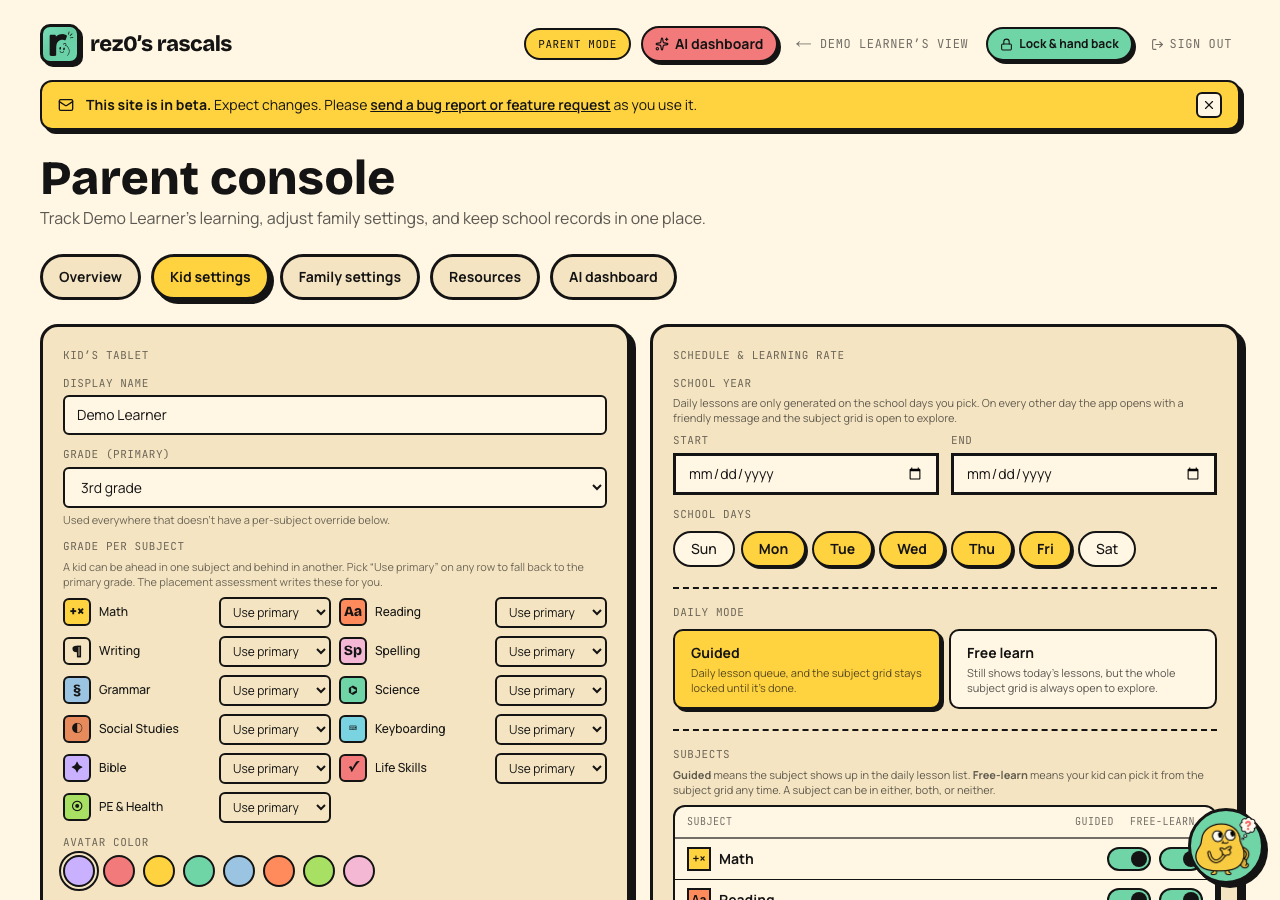 Per-kid settings on the left, schedule and learning rate on the right.
- Grade per subject: set by placement, adjustable by hand.
- Daily lesson target: how many lessons per school day, with a recommended pace computed from your school-year end date.
- School days: which weekdays build a queue. Streaks never break on off days.
- Guided vs Free learn, video lessons on/off, and accessibility options (audio off, dyslexic font, big text, reduced motion, dark mode). Audio off hides read-aloud buttons and stops narration from preloading.
- Kid-only font settings: the dyslexic font applies to the learner experience, while the Parent Console keeps its regular interface font.
- Per-kid passcode: an optional 4-digit code so siblings can't switch into each other's profiles.
- Save before leaving: the kid and schedule panels each have a Save button. If either panel has unsaved changes when you follow a link, sign out, or lock parent mode, Rascals asks whether to save, leave without saving, or keep editing. Closing or reloading the tab also triggers your browser's warning.
Paperwork
Attendance, outside learning, and mastery roll up automatically into a printable attendance & progress report, plus a letter of intent where your state requires one. Set your state under Family settings, then open Resources to see the paperwork that applies.
Coach transcripts
Every conversation any kid has with Otto is saved. Coach transcripts shows them day by day, with concerning messages flagged. See Otto.
Bug reports and feature requests
Open Bug reports & ideas under Resources, or use Send feedback in the footer. Choose Report a bug or Request a feature, add a short summary and the details, then send it. The report goes directly into the QA inbox with your parent-account contact information so we can follow up.
Do not include passwords, payment details, or private information about your child in a feedback submission.